Platform setup guide
After you buy a platform, install it on your hosting in four steps: download the ZIP, upload and unpack it in cPanel, create a database, then open your domain in the browser and enter those database details.
cPanel hosting (File Manager + MySQL Databases), your domain pointed at that hosting, and the ZIP from your Neurova Digital account. PHP platforms (EcommSuite / CafeSuite) use this path.
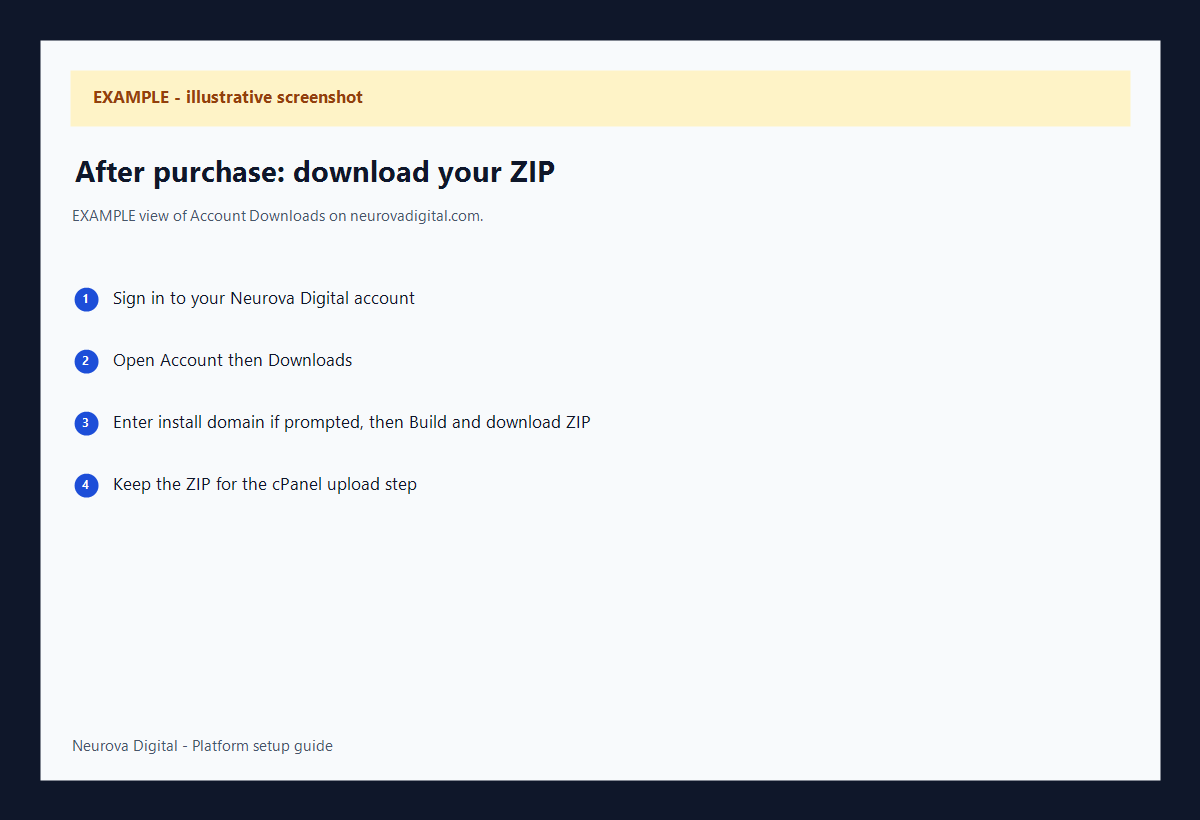
Download your ZIP
- Sign in to your Neurova Digital account.
- Go to Account → Downloads.
- Enter the domain where you will install (if asked), then download the ZIP.
- Keep the ZIP on your computer — you will upload it next.
Upload and unpack in cPanel File Manager
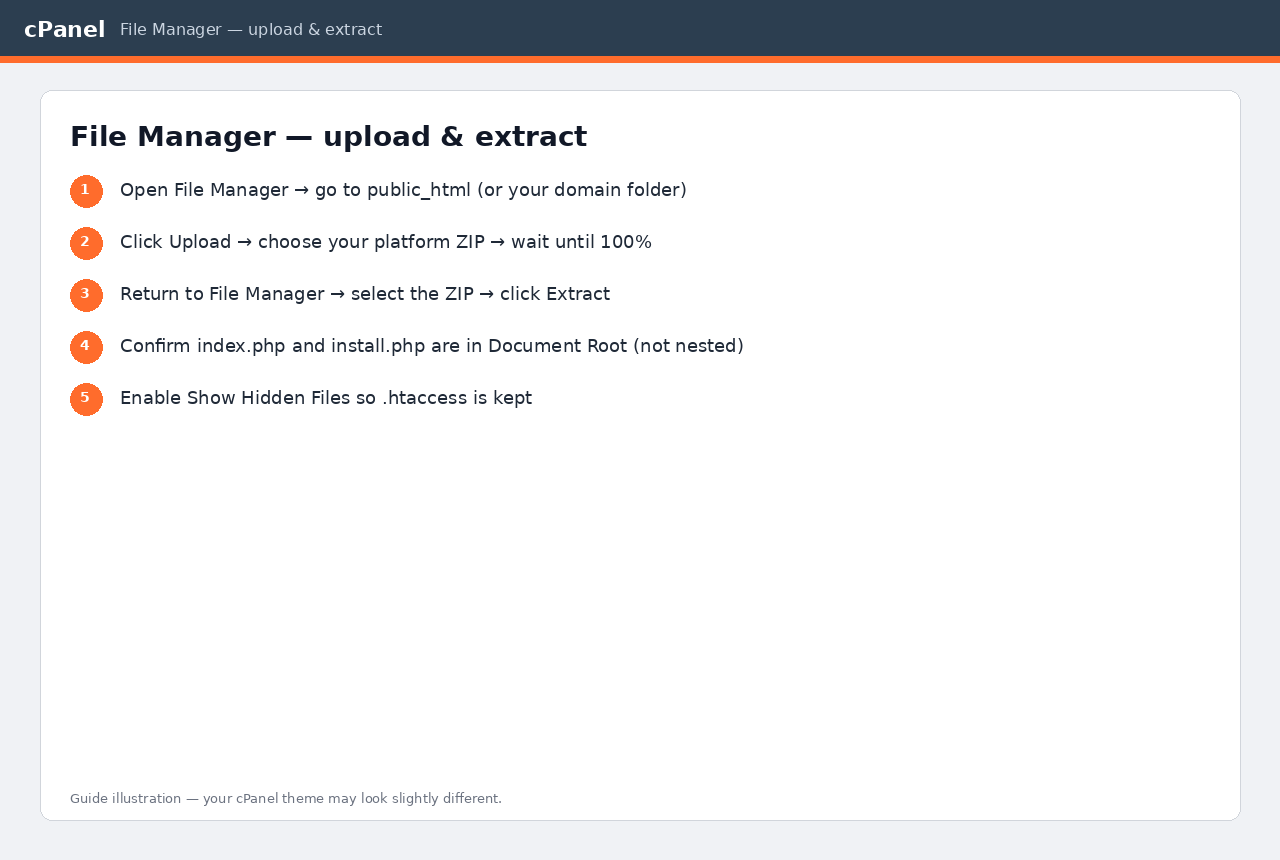
- Log in to cPanel for your hosting.
- Open File Manager.
- Go to your website folder (usually
public_html, or the folder for your addon domain). - Click Upload, choose your platform ZIP, and wait until it finishes.
- Back in File Manager, right-click the ZIP → Extract (or select it and use Extract).
- Confirm the files land in that folder. You should see files like
index.phpandinstall.phpin the same place as the site root — not buried inside an extra nested folder. If extract created a nested folder, move the files up one level into Document Root.
Turn on Show Hidden Files in File Manager settings so .htaccess is kept. Do not mix two different product ZIPs into the same domain folder.
Create a MySQL database in cPanel
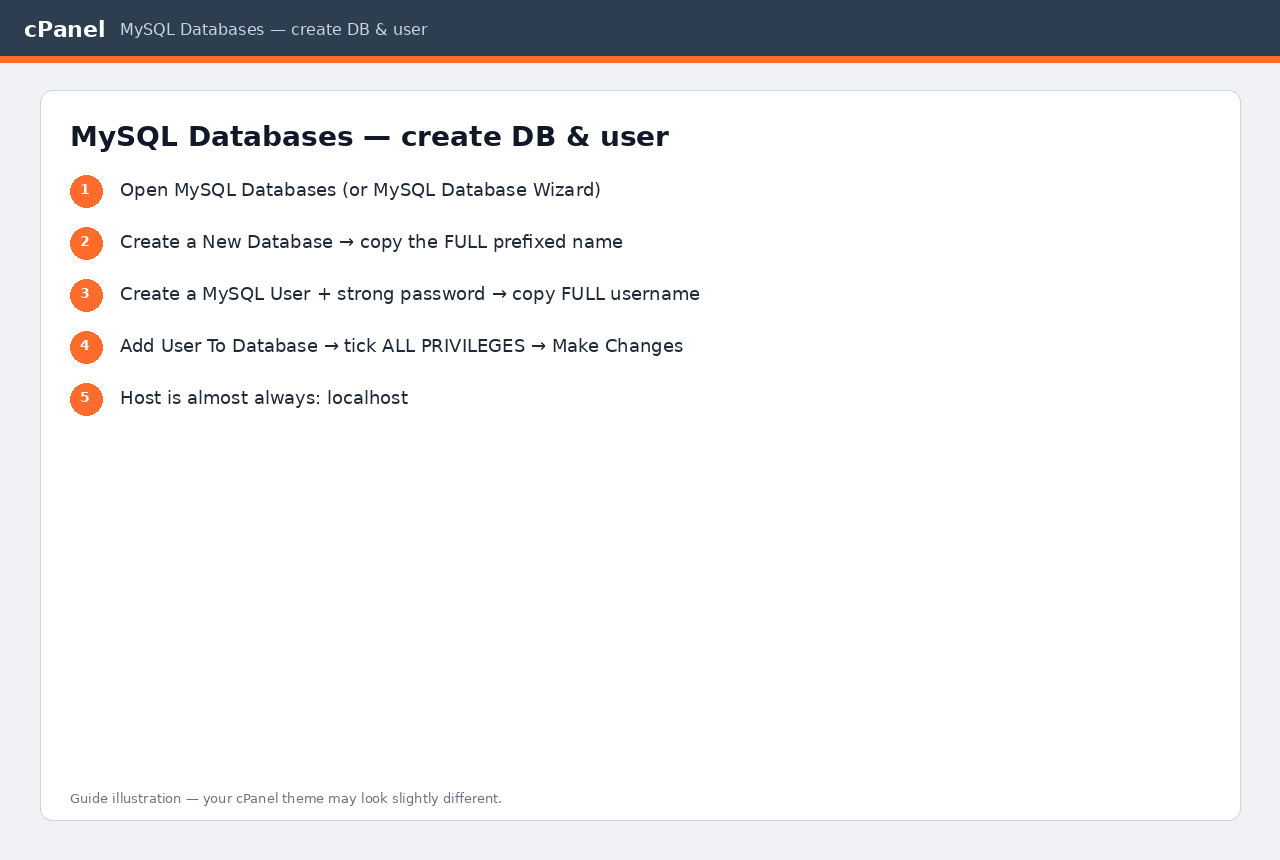
- In cPanel open MySQL Databases (sometimes called MySQL Database Wizard).
- Create a database — type a short name. cPanel will save a full name with a prefix (example:
youruser_store). Copy the full name. - Create a user with a strong password. Copy the full username (also prefixed) and the password.
- Add the user to the database and grant ALL PRIVILEGES.
- Database host is almost always
localhost.
Write down the full database name, full username, and password exactly as cPanel shows them. Truncated names are the most common reason install fails.
Open your domain and enter the database details
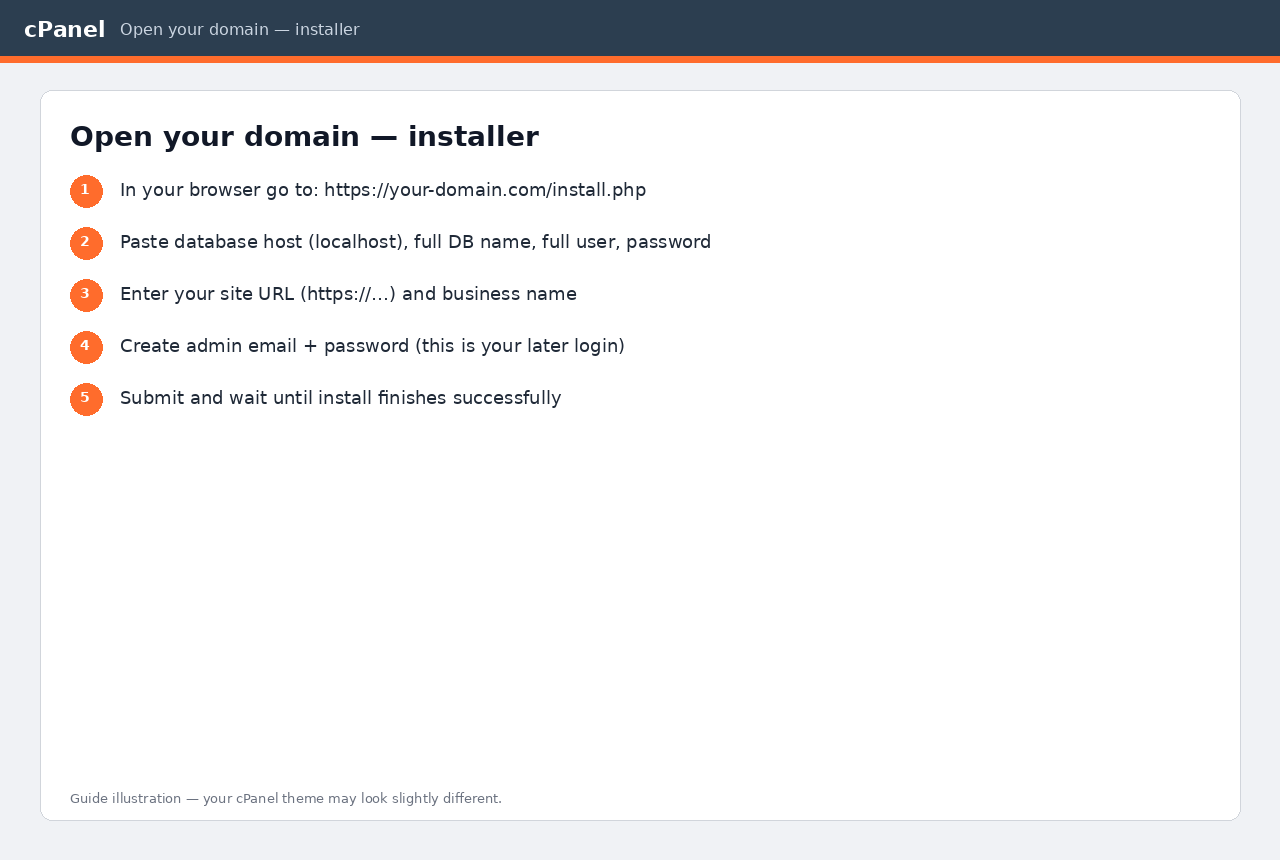
- Open a browser and go to your domain, then the installer — usually:
https://your-domain.com/install.php
(If the site lives in a subfolder, include that folder in the URL.) - On the installer form, enter:
- Site / domain URL — full
https://address, no trailing slash - Database host — usually
localhost - Database name — full prefixed name from cPanel
- Database user — full prefixed username
- Database password
- Business name — your trading name
- Admin email and password — the login you will use after setup
- Site / domain URL — full
- Submit / continue until the installer finishes successfully.
Log in and secure the install
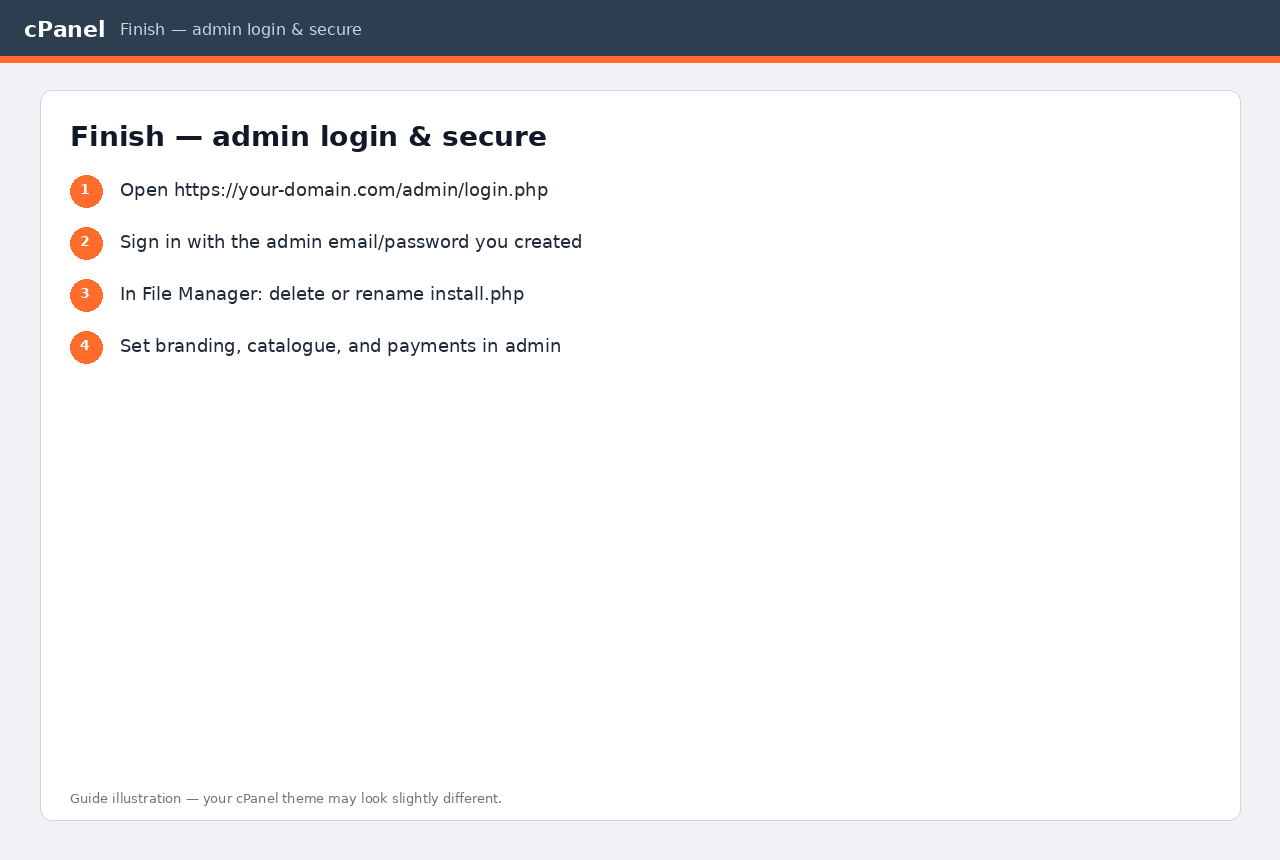
- Sign in at
https://your-domain.com/admin/login.phpwith the admin email and password you created. - In File Manager, delete or rename
install.phpso the installer cannot be run again. - Complete branding, catalogue, and payment settings in admin.
install.php from Document Root.Need help? Contact support. Package-specific notes (if any) are also in START-HERE.html inside your download.